Module 04 · TCRK XERP

Shop-Floor Tablets

A work order shouldn't be a WhatsApp message in the foreman's pocket. Each workstation sees its own work orders: start, pause, resume, finish. The office doesn't have to ask — the system shows it.

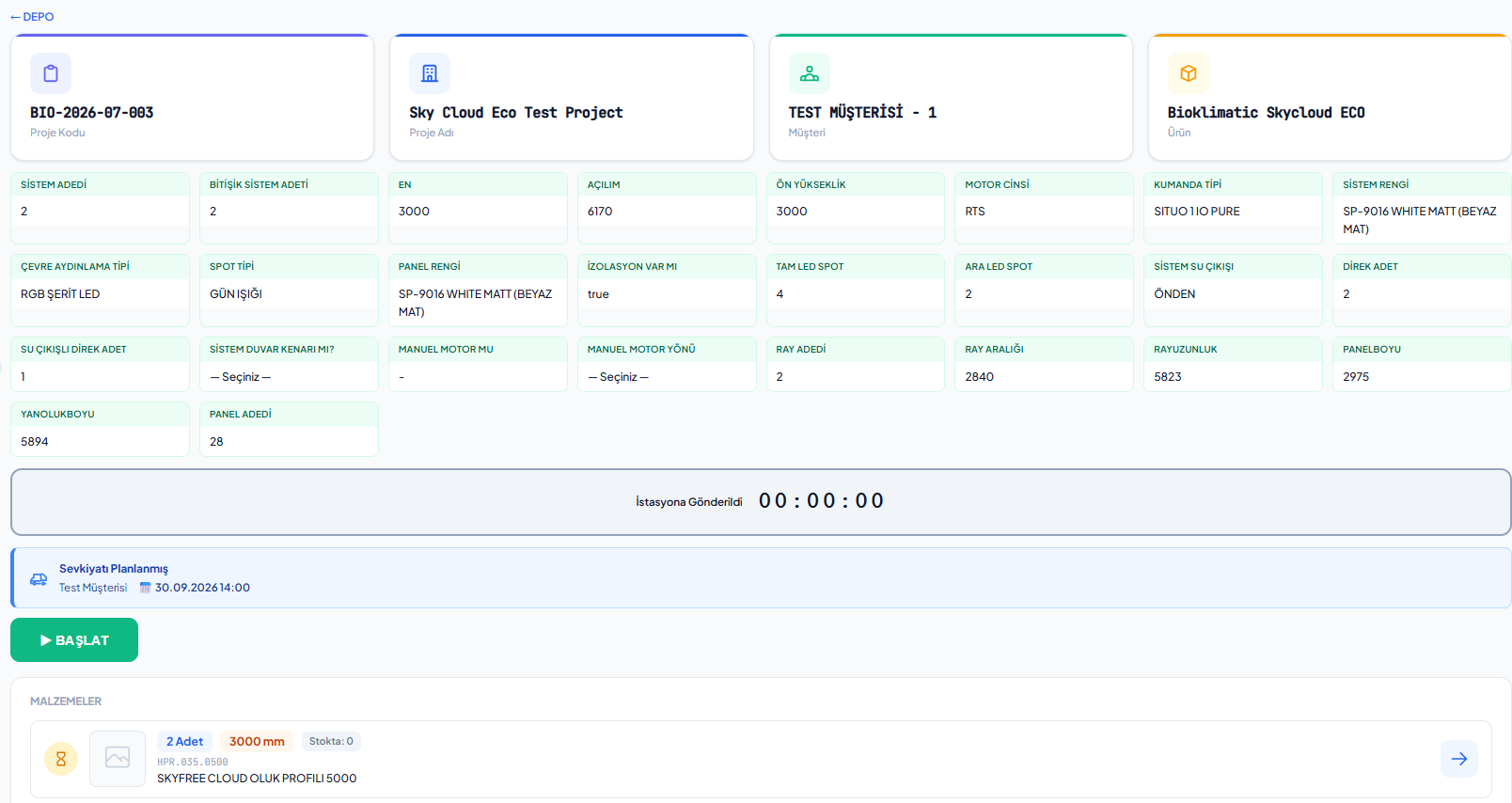
Work order on a tablet: project details, product answers and material list

The TCRK XERP Shop-Floor Tablets module delivers work orders to operators through tablet screens tailored to each workstation type on the pergola production line; it captures actual durations with start, break, downtime, finish and undo records, and tracks materials and packages by barcode.

Workstation-specific screens

Warehouse, cutting, painting, assembly, packaging, crating, shipping.

Actual time

Start, break, downtime, finish and undo records.

Materials by barcode

Material info by code, material completion.

Boxes and packages

Create boxes, add them to packages and crates.

Work order flow

Operators see only their own work.

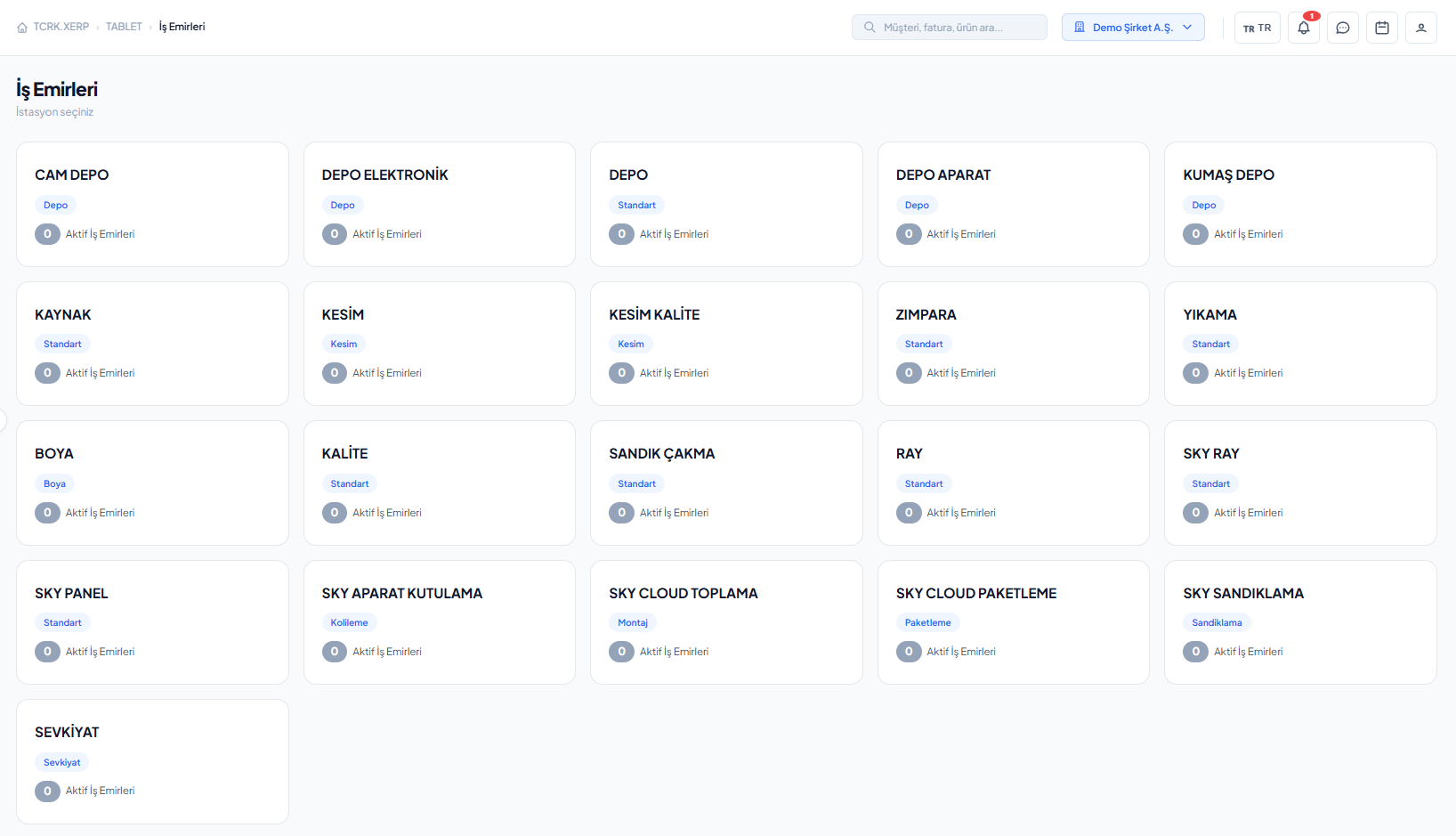
Each employee sees the workstations they are authorized for; selecting a workstation lists its pending work orders. When a work order is opened, the project, customer, product, product answers and material list are on a single screen.

  • Employee permissions per workstation
  • Start, resume, break, downtime reason, finish, undo
  • Project and product answers (dimensions, colors, options)
  • Material list and material completion
Workstation selection and pending work orders on a tablet
Workstation types

From cutting to crating, each workstation has its own layout.

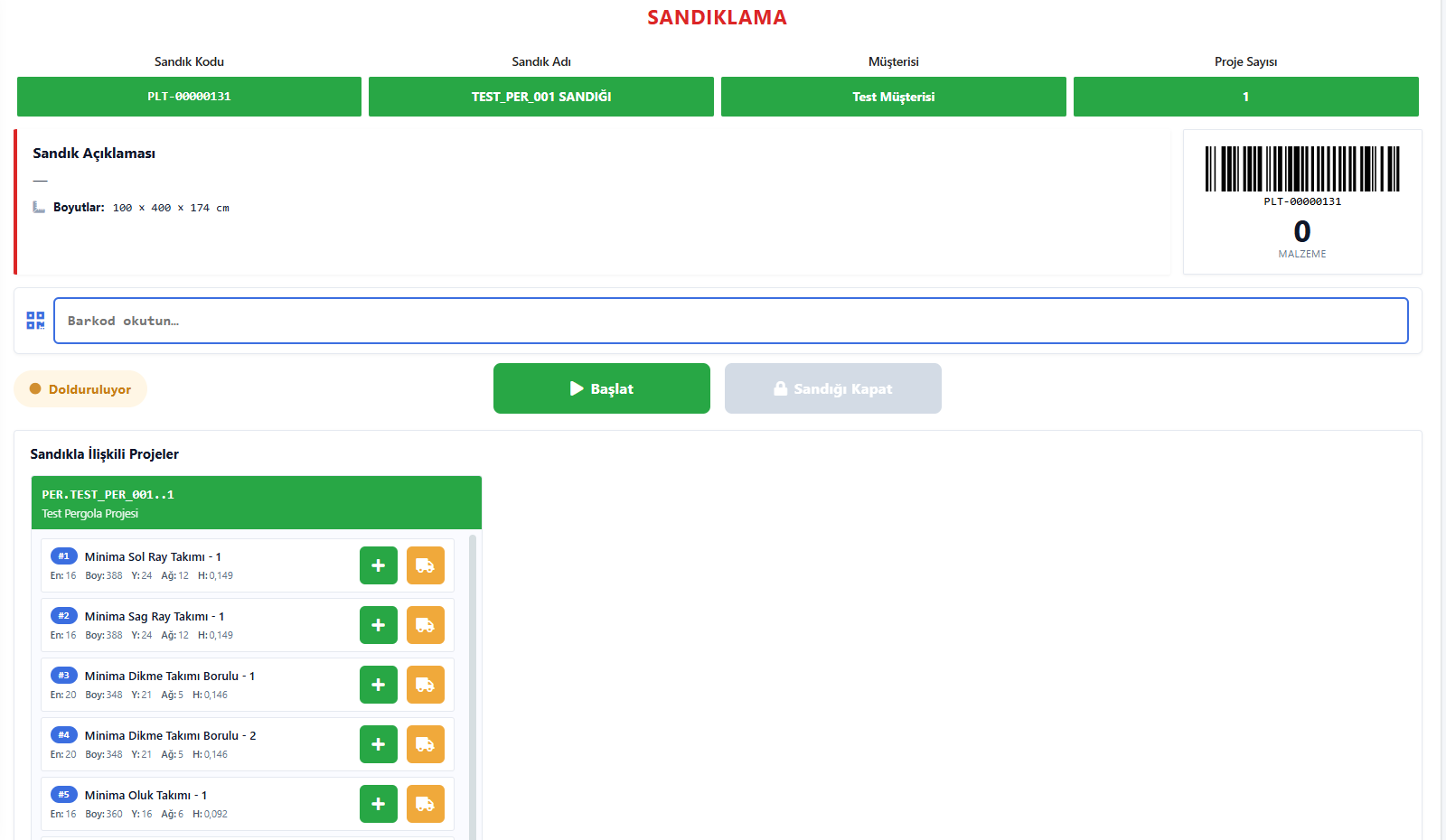
Standard, warehouse, profile warehouse, cutting, painting, assembly, packaging, crating, boxing and shipping workstations each have their own screen layout. At packaging and crating workstations, boxes are created and materials are added to boxes and crates.

  • Separate detail screen per workstation type
  • Box creation, adding/removing materials
  • Package, partial shipment and crate operations
  • Shipment loading and delivery note on the tablet
Crating screen on a tablet: crate code, barcode scanning and project parts to add to the crate
Screens

What's in this module?

1

Work Orders

Workstation selection and pending jobs.

2

Work Order Details

Project, product answers, materials, timer.

3

Downtime Reasons

Breaks and downtime are logged with defined reasons.

4

Packaging / Crating

Create boxes, add them to packages and crates.

5

Shipment Loading

Start, pause and complete loading.

6

Delivery Note

Delivery record and log.

Place in the chain

Where the plan meets the shop floor.

Planned work orders land on workstation tablets; every start and finish record updates production status. A project leaving the last workstation is ready to ship.

Follow the journey of a sample 4×6 pergola
Frequently asked questions

Common questions

Which devices do the tablet screens run on?

The tablet screens are web-based; they run in the browser on workstation tablets, with no app installation required.

Can operators see other workstations' jobs?

No. Each employee sees and acts only on the work orders of the workstations they are authorized for.

Is downtime recorded?

Yes. Breaks and downtime are logged with defined reasons; start, break, downtime and finish times are tracked per work order.

Live demo

Draw your pergola. Price and bill of materials follow on their own.

In a 30-minute online demo we'll show XERP 3D and TCRK XERP working as One Chain — with your own product family.

Book a Live Demo